display.newImageRect equivalent for display.newText / ui.newLabel ??

Is there a way, currently, to do the same autoscaling as a display.newImageRect with text / label objects.

It’s nice to have such sharp graphics on iPhone4 with display.newImageRect and autoscaling, but my text objects created with display.newText or ui.newLabel are still blurry.

Thanks in advance for any help! [import]uid: 4621 topic_id: 2209 reply_id: 302209[/import]

I’m having this same problem… Is there no way to fix this currently? [import]uid: 7849 topic_id: 2209 reply_id: 7243[/import]

Bump. [import]uid: 4621 topic_id: 2209 reply_id: 7723[/import]

I would also like to know this.

Thanks.

// red. [import]uid: 7143 topic_id: 2209 reply_id: 7735[/import]

I’ve done quite a bit of digging and it looks like right now display.newText (and I’m assuming the label as well) is out of luck when it comes to retina graphics for now. I noticed they are a little blurry on my high res buttons on my iPod touch 4, but I’m not too bothered by it. I know it’ll get updated eventually… at least everything is very much readable. [import]uid: 7849 topic_id: 2209 reply_id: 7736[/import]

Hrm, is there a way to make the display.newText be something larger than what you want initially, and then scale it down?

Say, you have size 8 right now, but for the iphone 4, you might really need a size 16 and then xScale = 0.50 and yScale = 0.50?

Just an idea, I dont have a way to test that. [import]uid: 8541 topic_id: 2209 reply_id: 7951[/import]

You could use a font size which is a fraction of the actual screen size: display.contentWidth* .05 (alter the .05 to whatever size suits)?
Like:
myText = display.newText( “Hello!”, 0, 0, native.systemFont, display.contentWidth*.05 ) [import]uid: 9285 topic_id: 2209 reply_id: 7954[/import]

@sanchan91: Yes there is a way to do that using te xScale an yScale attributes, so its definitely worth trying out… thanks for the idea! [import]uid: 7849 topic_id: 2209 reply_id: 7963[/import]

Did it work Jon?

I’m going to test this tonight!

// red. [import]uid: 7143 topic_id: 2209 reply_id: 8246[/import]

The technique described works with the retina display, here’s how to get your text really sharp:

Set your text size to be DOUBLE what you would be (e.g. if your text size is 16, set it to 32), then, scale it by half:

[blockcode]
textObject.xScale = .5
textObject.yScale = .5
[/blockcode]

That’ll get your text looking really sharp on the retina display (just tested). As for UI buttons and labels, you’ll have to add code to double the text size and scale it by half in ui.lua

Hope that helps! [import]uid: 7849 topic_id: 2209 reply_id: 8453[/import]

Just confirmed, what I described above ALSO works with UI buttons (haven’t done it with labels yet, but I’m 100% sure it works). On my iPod touch 4, my UI button text now looks EXTREMELY sharp. Here’s how to modify ui.lua:

Find this line:

[blockcode]
if ( params.size and type(params.size) == “number” ) then size=params.size else size=20 end
if ( params.font ) then font=params.font else font=native.systemFontBold end
if ( params.textColor ) then textColor=params.textColor else textColor={ 255, 255, 255, 255 } end
[/blockcode]

Immediately under those lines, add this:

[blockcode]
size = size * 2
[/blockcode]

Then, very shortly below that, look for this IF statement:

[blockcode]
if ( params.emboss ) then
[/blockcode]

And right before the “end” of that block, add this:

[blockcode]
labelHighlight.xScale = .5; labelHighlight.yScale = .5
labelShadow.xScale = .5; labelShadow.yScale = .5
[/blockcode]

And lastly, find these lines (should be immediately after the section above):

[blockcode]
labelText = display.newText( newText, 0, 0, font, size )
labelText:setTextColor( textColor[1], textColor[2], textColor[3], textColor[4] )
button:insert( labelText, true )
labelText.y = labelText.y + offset
self.text = labelText
[/blockcode]

And immediately below that, add this:

[blockcode]
labelText.xScale = .5; labelText.yScale = .5
[/blockcode]


And that’s it! Once you make those modifications to ui.lua, your ui button text will be extremely sharp on the iPhone4/iPod touch 4 retina display.

You can find the ui label section in ui.lua and do the same modifications and your ui labels will look great as well.

To Ansca: Request to make those modifications to ui.lua standard in future releases! The difference between blurry button text and the sharp button text is like night/day.

Hope that helps!

[import]uid: 7849 topic_id: 2209 reply_id: 8454[/import]
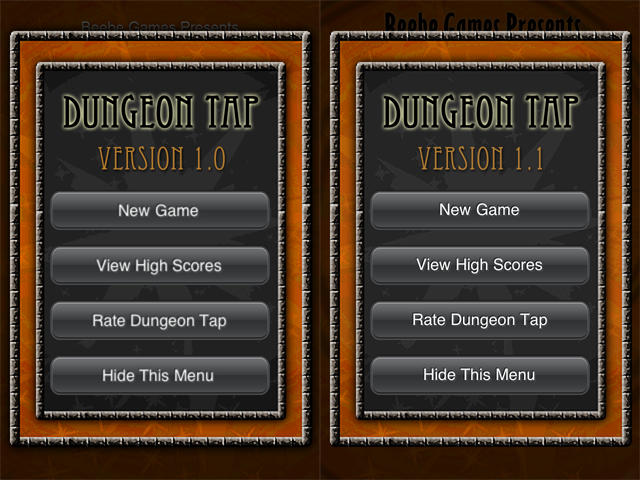
For anyone subscribed to this thread, sorry for all the replies, but I’m working on an update to Dungeon Tap 1.1 and just thought I’d show you a comparison screenshots with the new ui.lua mod:

The one on the left is obviously the old ui.lua that didn’t support retina display text and the one on the right shows the new sharp text (and it looks even better on the device):

Dungeon Tap [import]uid: 7849 topic_id: 2209 reply_id: 8455[/import]